

How to improve AutoFill results
This guide describes how to fine-tune AutoFill to find relevant entries automatically.
Find context info
When you open KeePassium AutoFill, the system gives it some context info to find the most relevant credentials. That info is just a short text: a page URL from a web browser or some internal ID from other apps.
KeePassium displays the received context information as Context below the entries:
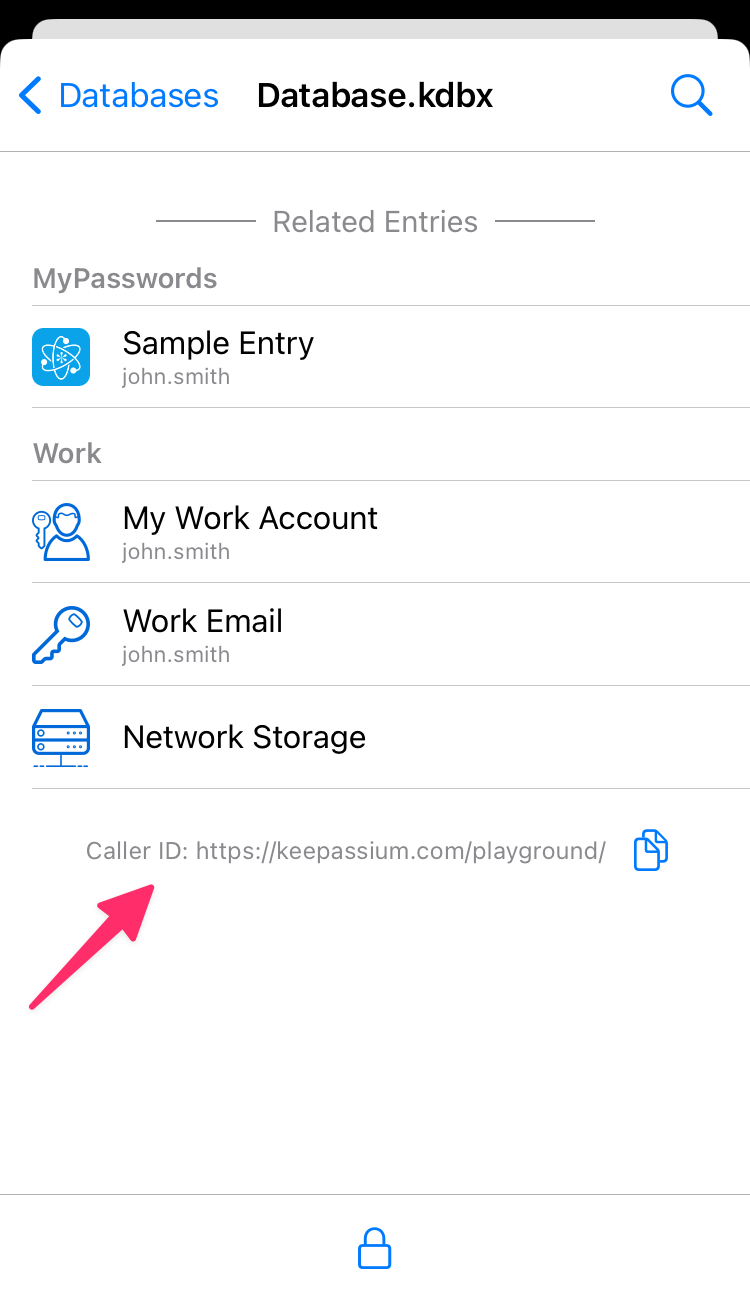
Tap the  button next to Context to copy it to clipboard. We will need it later.
Empty context info
Some apps do not identify themselves to AutoFill. In this case, KeePassium receives no context information and cannot find relevant entries. The only solution is to ask the developers of that app to enable Password AutoFill in their app; this will make it compatible with all password managers.
Add context info to the relevant entries
KeePassium uses the context to find most relevant entries for the target app. To get relevant entries listed first, you need to add context info to the entry.
- Open your database in main KeePassium app
- Find the relevant entry and open it in entry editor
- If Context is an app identifier:
- Add a custom field (with any name)
- Paste the Context as its value
- Turn off the field protection switch
- If Context is a page URL:
- Add it as an entry's URL (main or additional) — this ensures the best similarity score
If KeePassium AutoFill finds exactly one entry that perfectly matches the context info — it will automatically paste it to the calling app.
Similarity scoring
If KeePassium AutoFill cannot find any exact matches, it will use a heuristic similarity estimation algorithm. The algorithm compares parts of the context info with parts of entry fields and returns a similarity score between 0 and 1.0.
Terminology
- URL components:
scheme://host:port/path?query - Main domain is one level above the generic top-level domain (TLD). For instance, domains
www.example.co.ukandauth.example.co.ukhave the same main domain,example.co.uk. - Service name is the main domain without the TLD suffix. For instance, domains
company.co.ukandcompany.comhave the same service name,company.
Assuming context info is url:
urlis similar to entry URL (oroverrideURLfield) -> 0.7…1- Same URL -> 1.0
- Same hosts or main domains -> 0.7 (
www.example.comvsauth.example.com) - Same hosts and partially paths -> 0.7…1.0 (
example.com/user/alicevsexample.com/user/bob) - Same service names -> 0.5 (
www.example.devsauth.example.co.uk)
- host part of
urloccurs inside the entry title -> 0.8 - host part of
urloccurs inside the entry Notes field -> 0.5 - main domain of
urlmatches a custom field value -> 0.95 - host part of
urloccurs inside a custom field value -> 0.5
Only for reference
Listed rules and values are only for your reference and are subject to change. For up-to-date info, please refer to the source code.
Hide irrelevant accounts
If you have some entries or groups that are never relevant for AutoFill, you can explicitly exclude them from AutoFill.
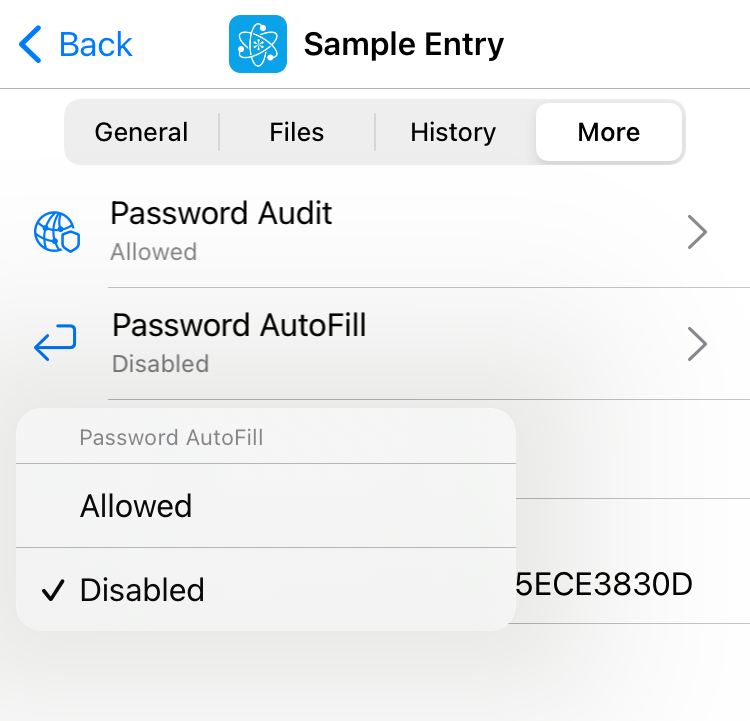
Entries
- Select the entry you want to exclude
- Select More tab
- Tap Password AutoFill and select Disabled
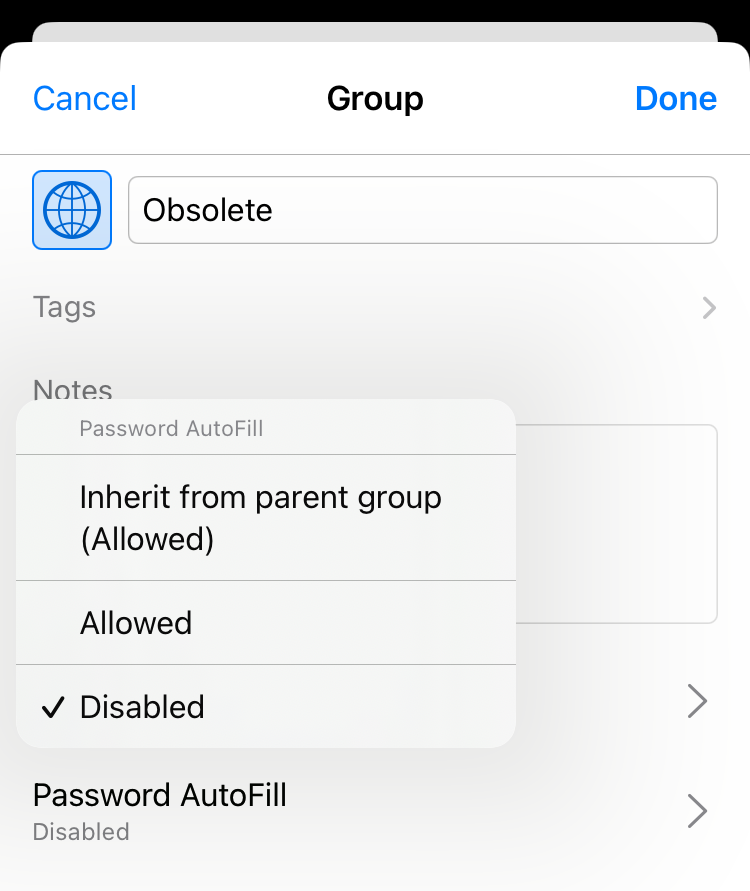
Groups
- Open group editor
- Tap Password AutoFill and select Disabled
Priorities
If you disable AutoFill for a group, the same is assumed for all its entries — regardless of their individual AutoFill settings.